


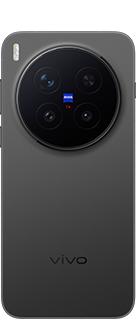
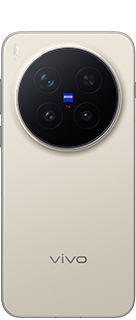

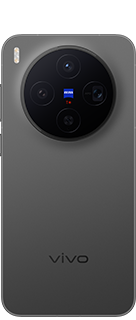
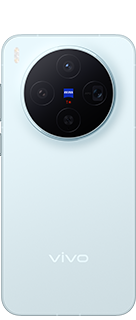
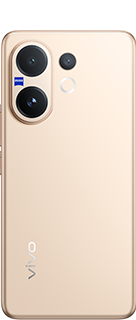
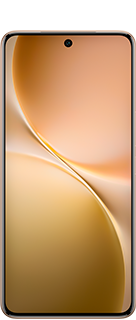
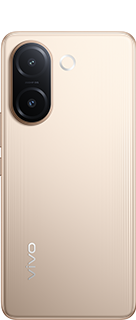
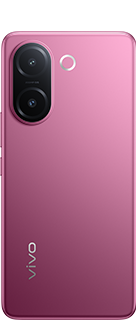
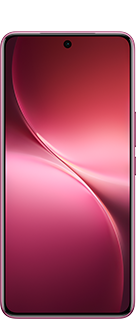
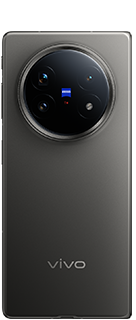
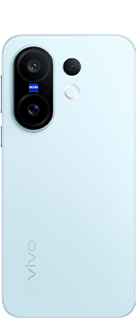
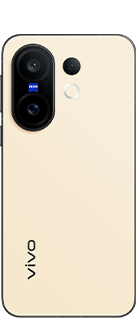

GCam For Vivo V25 Pro; Is Just Hock or Worthy?

If you love photography with your Vivo v25 pro phone, you might have noticed that the some times stock camera that comes with the phone may not give you the best results. But don't worry, you can make your Vivo v25 pro camera better by installing the Google Camera (GCam) port.
The Google Camera app is a popular camera app that is known for producing exceptional results with minimal effort. The app is designed to take advantage of advanced camera features such as HDR+ and Night Sight.
If you own a Vivo v25 pro and are looking for a way to improve the camera performance, then installing the Google Camera app might be the solution you need. In this article, we will guide you through the process of installing and using the Google Camera app on your Vivo v25 pro.
Download Now8.7 Stable Version For Vivo v25 pro
Google Camera (GCam Apk) Features
The Google Camera (GCam) app comes with a range of advanced camera features that are designed to enhance the camera performance of your smartphone.
- Night Sight: This feature allows you to take sharp and detailed photos even in low light conditions by capturing multiple shots and combining them to create a bright and clear image.
- HDR+: This feature enhances the dynamic range of your photos, resulting in sharper and more detailed images with better color accuracy.
- Lens Blur: This feature lets you add a professional-looking blur effect to your photos, giving them a beautiful bokeh effect.
- Time-lapse video: Some versions of GCam may not have the time-lapse video feature.
- Portrait mode: This feature allows you to capture stunning portrait photos with blurred backgrounds, giving your photos a professional and artistic look.
- Slow-motion video: Some GCam ports may not support slow-motion video recording.
- Manual controls: Some GCam ports may not allow you to manually adjust settings such as ISO, shutter speed, and white balance.
- Face unlock: Some GCam ports may not support the face unlock feature.
- Panorama mode: Some versions of GCam may not have the panorama mode.
- Motion photos: This feature captures a short video clip before and after you take a photo, allowing you to relive the moment and capture the perfect shot.
- Photo Sphere: This feature lets you capture 360-degree panoramic photos, giving you a complete view of your surroundings.
- RAW support: This feature lets you capture photos in RAW format, which provides more control over editing your photos and allows you to retain more details.
Google Camera Download Process
Step 1: Check Compatibility
The first step is to ensure that your Vivo v25 pro is compatible with the Google Camera app. While the app works with most Android devices, not all smartphones are supported. Check if your Vivo v25 pro supports the Camera2 API, which is a software interface that allows advanced camera features such as RAW image capture and manual control of camera settings. You can download the Camera2 API Probe app from the Google Play Store to check if your phone supports this feature.
Step 2: Download Google Camera APK
Once you have verified that your Vivo v25 pro is compatible with the Google Camera app, the next step is to download the APK file. You can search for "Google Camera APK for Vivo v25 pro" on your browser and download the latest version of the app from a trusted source like GCamApk.pro.
Step 3: Install Google Camera APK
Before installing the Google Camera app, ensure that the "Unknown Sources" option is enabled in your Vivo v25 pro's security settings. This will allow you to install apps from sources other than the Google Play Store. Once enabled, go to your device's file manager and navigate to the folder where you saved the downloaded APK file. Tap on the APK file to begin the installation process and follow the on-screen instructions to complete the installation.
Step 4: Configure Google Camera
After installing the Google Camera app, launch the app and start experimenting with the different camera modes and settings. Some of the most popular features of the app include Night Sight, HDR+, and Portrait mode. You can adjust the settings to suit your preferences and experiment with different shooting modes to get the best results.
What is Gcam?
GCam (short for Google Camera) is a camera app developed by Google for its Pixel series of smartphones. The app is designed to make the most out of the smartphone camera hardware and provide high-quality photos and videos with advanced features such as Night Sight, HDR+, Portrait mode, and more.
Due to the popularity and success of GCam on Pixel devices, third-party developers have created ports of the app for other Android smartphones. These ports allow users to install the GCam app on their non-Pixel devices and take advantage of the advanced camera features that come with the app.
These ports are often customized for specific devices and can vary in terms of compatibility and functionality.
How To Download Gcam On Vivo v25 pro
To download GCam APK on your Vivo v25 pro, follow these simple steps:
- Open your preferred browser on your Vivo v25 pro and type Gcamapk.pro
- Scroll down the page until you find the list of available GCam versions. Look for the version that is compatible with your device and click on the download link.
- Once the download is complete, go to your phone's file manager and locate the downloaded GCam APK file.
- Tap on the APK file to begin the installation process. If you see a pop-up message saying "Install blocked," go to Settings > Security and toggle on the "Unknown sources" option to allow the installation of apps from sources other than the Google Play Store.
- Follow the on-screen instructions to complete the installation process.
- Once the installation is complete, open the GCam app and start using its advanced camera features to take stunning photos and videos on your Vivo v25 pro.Note: It's important to choose a GCam version that is compatible with your device to ensure that the app works properly and all features are available.
All done, Now time to click stunning pictures!
Please sign in
Login and share